Tools to organize your pictures
Photohoard supports several methods to mark up your photos to aid organization. These methods are:
Status
Each photo can be marked either “new,” “undecided,” “accepted,” or “rejected.” Photos are automatically marked “new” upon import, and “undecided” upon first view. Press Control+G to mark a photo as “accepted,” Control+X to mark a photo as “rejected,” or Control+U to mark a photo as “undecided.” Status is indicated by a small colored mark on the top right of the image tile.
Color label
Each photo can be marked with a color that is applied to the border of the image tile. Use Control+1 through Control+5 to apply a color label, Control+0 to remove it, or use the




 and
and  icons.
Star rating
Each photo can be marked with a rating of 1 through 5 stars by pressing Alt+1 through Alt+5. Use Alt+0 to remove the rating. The star rating is indicated on the bottom left of the image tile.
Tags
Any number of arbitrary textual tags can be attached to photos, as explained below.
Collections
Collections (below) are a special kind of tag intended for high-level organization.
Tagging
To apply a tag to an image or selection of images, simply type a tag name in the “New tag…” box near the bottom right of the window. While typing, the name of your tag will appear in deep red if it is truly new, in green if it is a unique abbreviation of an existing tag, or in black if it is not unique. Press Enter to apply the tag. This is only possible if what you typed is either truly new or a unique match to an existing tag. In the latter case, the tag name will be automatically expanded.
Tags can be organized in a hierarchy as well. For instance, you might have a tag “Places:Cities:Los Angeles.” If such a tag exists, you could refer to it using abbreviations like “Los Ang,” “Cit:Los,” “Pl:C:L,” or “Pla::Los,” assuming you don’t have a “Places:Cities:Los Alamos” tag.
The “New tag…” box is part of a larger “Tags” panel that can be used to manage tags more broadly. Any tag that applies to all images in the current selection are shown in black. Tags that apply to only some images in the current selection are shown in blue. If you hover over a tag, a small “–” icon appears that removes the tag from all images in the selection. For blue tags, there will also be a small “+” icon that applies the tag to all images in the selection.
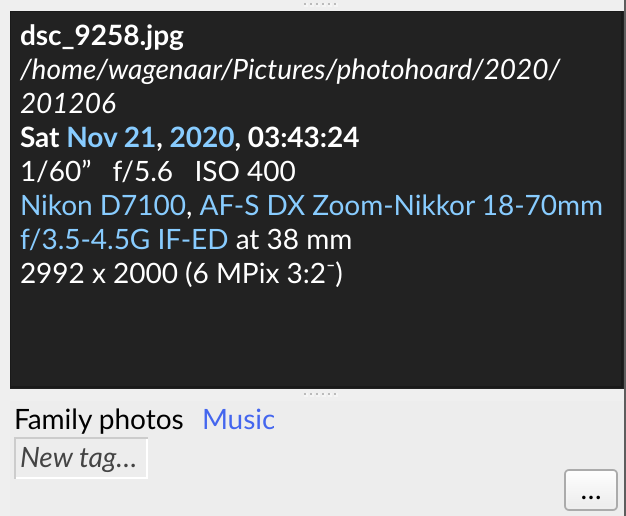
The “Tags” panel also features a small “…” icon at the bottom right. Click this to open the tag manager in which you can browse your tag hierarchy, apply or remove tags from images, and create or delete tags entirely. (Tags can only be deleted if they are not attached to any images.)
Collections
I find it convenient to keep all of my photos in a single Photohoard database. But you may have several very distinct bodies of photographic work. For instance, I have family pictures and work-related photos. Photohoard accommodates this situation by allowing you to group images into “collections.” A collection is nothing but a regular “tag” inside the “Collections” tag group. Whenever you import photos into Photohoard, you are offered the choice to associate them with a new or existing collection.
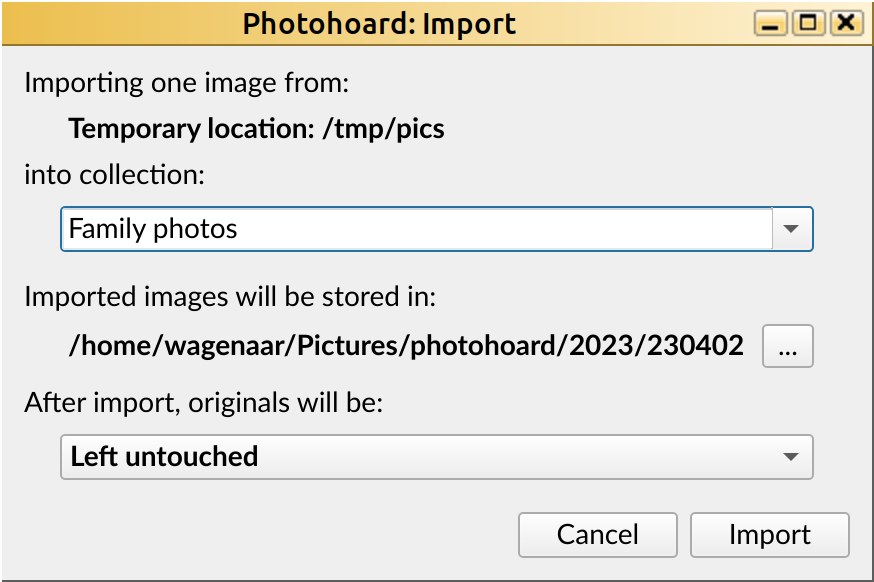
New collections can also be created with the “Tag manager.” There is nothing special about collections as opposed to other tags, except that the “Filter” dialog has a special section for filtering based on collection.